iOS
Configure your iOS device to use WonderProxy’s VPN
Install the WonderSwitcher iOS App
The fastest & easiest way to get started on iOS is with our VPN app.
Download the app from the App Store
Log in to your account, normally or with SSO
Give the app the VPN permissions it asks for, you may be required to enter your device PIN.
Select a proxy to connect to.
iOS 18 IKEv2 Configuration
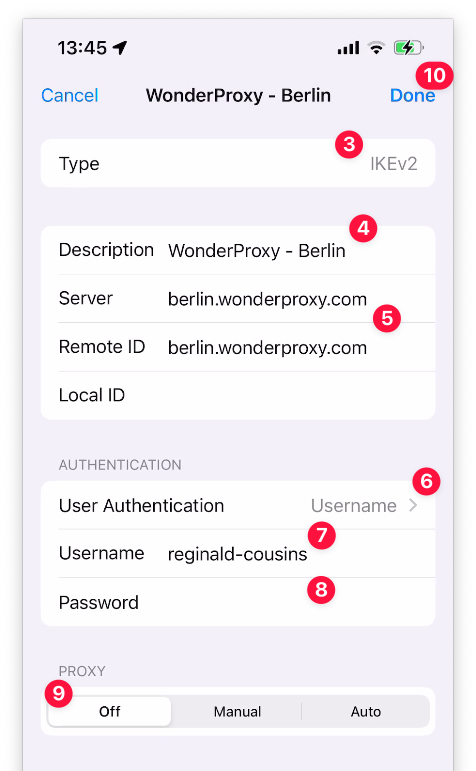
- Use Settings app to navigate to General » VPN & Device management » VPN
- Press Add VPN Configuration…
- Make sure the default type IKEv2 is selected
- Enter the description, consider “WonderProxy - <location>”
- Use <location>.wonderproxy.com as both the server and Remote ID.
- Make sure Username is selected as the user authentication method
- Enter your WonderProxy username
- And a generated passphrase
-
Do not enable additional proxy settings, keep the toggle in “Off” position
-
Press Done at the top to finish
-
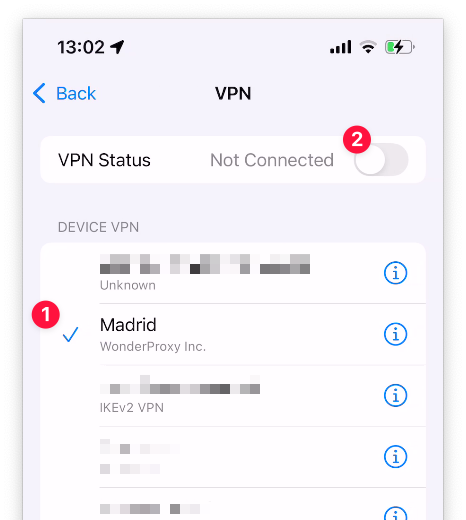
Now you can connect by selecting the WonderProxy location from the list and toggling the switch at the top of the page
iOS 14.4 IKEv1 Configuration
- Open up Settings
- Select General
- Select VPN, then Add VPN Configuration
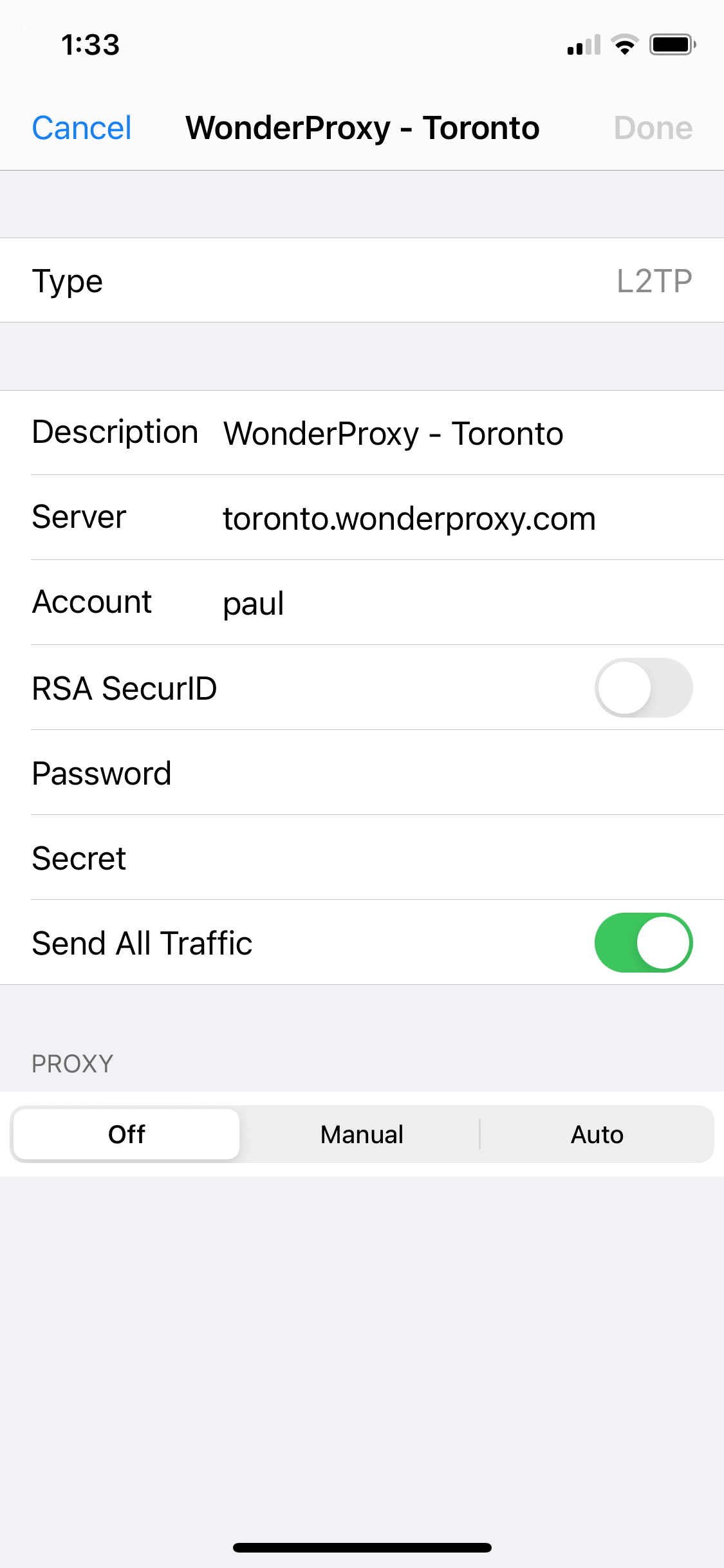
- For Type, select L2TP
- For Description, enter WonderProxy
-
For Server, type the server address
(e.g.
toronto.wonderproxy.com) - In Account, enter your WonderProxy username
- In Password, enter your proxy token, or leave it blank if you want it to prompt you every time you try to connect
- In Secret, enter: (you must be logged in as a proxy user to view the shared secret) (we found copy-pasting it in was much easier than trying to type it)
- Make sure that Send All Traffic is enabled