Inspect HTTP(S) requests with Charles Proxy
Use Charles Proxy to locally inspect requests proxied through WonderProxy.
If you need to debug and test your geo-sensitive website by inspecting or modifying requests, your setup can get complicated. Using Charles Proxy with the WonderSwitcher VPN app for macOS makes it much simpler. The WonderSwitcher app sets a VPN location at the OS-level, and then by telling a browser like Firefox to route HTTP(S) traffic through Charles first, you can inspect, debug, and modify requests while still appearing to browse from anywhere in the world.
Connecting Charles Proxy and the WonderSwitcher app
First you'll need to configure Charles as a local proxy and route your browser traffic through it while connected to a VPN server:
- Set up Charles Proxy.
Download and install Charles Proxy for macOS (the free version limits you to 30-minute sessions). Launch the application and complete the initial setup.
- Configure Charles for web traffic inspection.
To inspect HTTPS traffic, you need to enable SSL proxying:
- Go to Proxy > SSL Proxying Settings.
- Check Enable SSL Proxying.
- Click +, enter the domain(s) you want to inspect (use
*for all domains), and click Done. - Go to Help > SSL Proxying > Install Charles Root Certificate and install the certificate.
- In macOS Keychain Access, find the "Charles Proxy" certificate and set it to Always Trust.
- Configure Firefox to use Charles.
Since the VPN will be set at the OS level, configure Firefox to send traffic to Charles first:
-
Open Firefox and go to Settings > Privacy and security > Connection and software security > Advanced settings, or navigate directly to
about:preferences#connectionSecurity. -
Under Proxy settings, click Configure proxy.
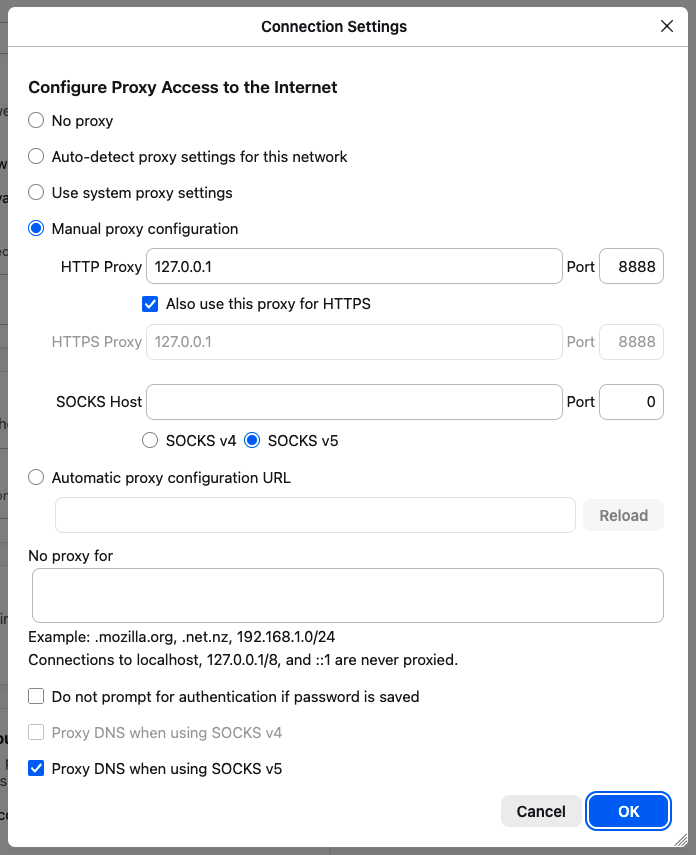
- Select Manual proxy configuration.
- Enter HTTP proxy as
127.0.0.1orlocalhostand port as8888(the defaults used by Charles). - Check on Also use this proxy for HTTPS.
- Click OK to save.
-
Open Firefox and go to Settings > Privacy and security > Connection and software security > Advanced settings, or navigate directly to
- Set up WonderSwitcher for macOS.
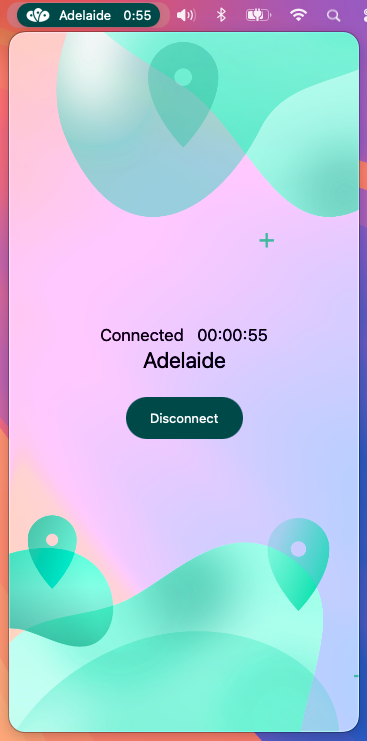
- Install the WonderSwitcher VPN app on your mac from the the Apple App Store, following the instructions here to get set up.
-
In the app, activate the location you want to test from in the servers menu.
- Verify your setup.
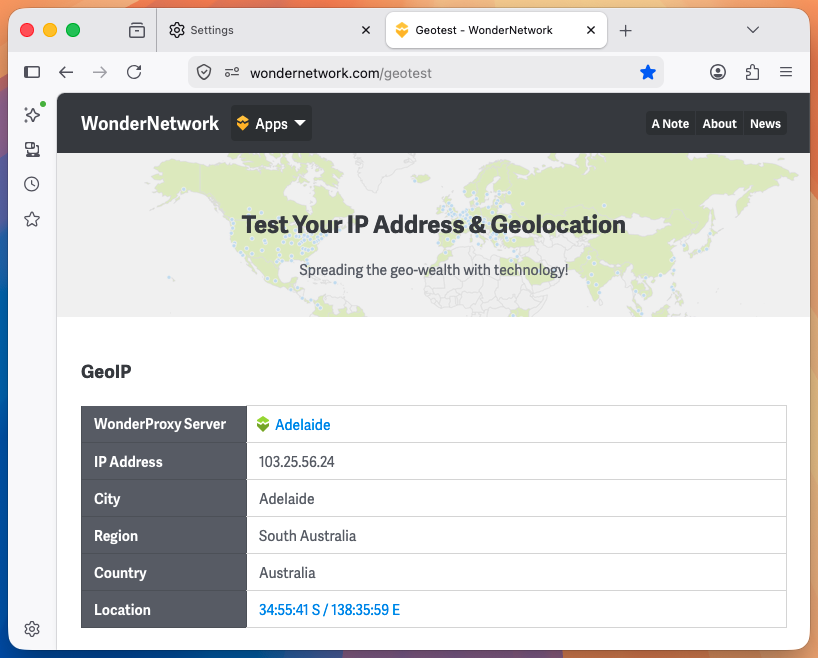
Open Firefox and visit a test website such as wondernetwork.com/geotest or whatismyip.com. Check that:
-
The location and IP address shown are as expected for your VPN server's location
-
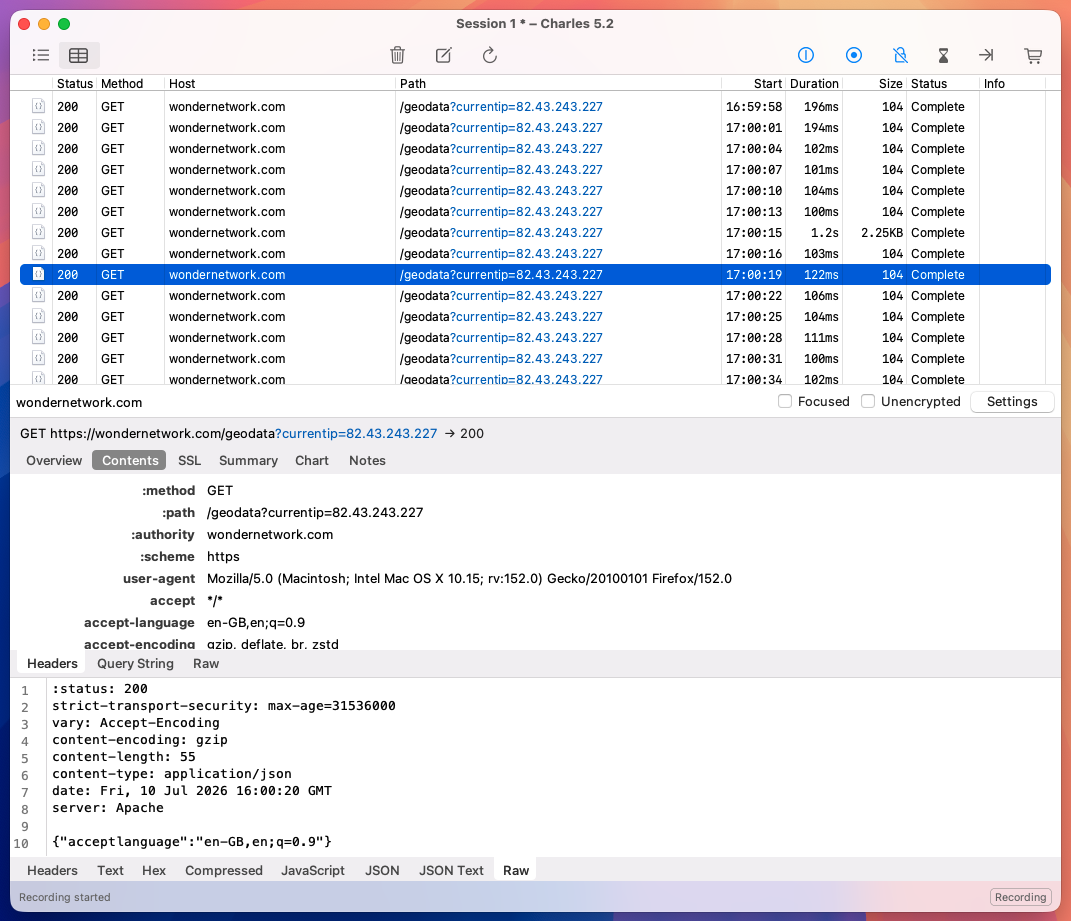
Charles shows the requests in its Sequence or Structure view (you may need to press the Record button, if it is not already active).
-
The location and IP address shown are as expected for your VPN server's location
Navigate to your website in Firefox. All Firefox's traffic should be visible in Charles.
Using Charles to Debug Your Website
Inspecting Requests and Responses
Once traffic is routed through Charles, you can inspect each request/response in a similar way to the browser's built-in debug tools, but with greater detail and more power:
-
Sequence view shows all requests in chronological order. Structure view shows requests organized by domain and path.
-
Select any request to view it broken down into:
- Overview: A summary of the method, status code, headers, timing, and size.
- Contents: Detailed views of headers, query string, cookies, and body.
Charles provides neatly formated views of body content such as JSON/JavaScript, for easy access. You can also see the full raw response in a single view under Raw.
Modifying requests with Charles
Besides inspecting the browser's requests, Charles also provides useful tools which allow you to manually change what is being sent and received, to test the behaviour of your website:
- Use Map Local to swap-in your local file.
- Use Map Remote to send a request to a different remote location.
- Use Rewrite to change any any HTTP headers, query params, URL segments or body in the request or response. Regex with capture groups is even supported.
Additional Resources
- Charles Proxy Documentation index
- Charles SSL Proxying Documentation
- Apple guide on trusting certificates in Keychain
- Mozilla Firefox Proxy Settings
Limitations
-
System-level VPN.
Traffic from any browsers/apps not configured to send to Charles first won't be visible.
-
WebSockets.
Charles can proxy WebSocket connections, but this would require additional configuration.
-
Browser extensions.
Some browser extensions may interfere with this setup, it is recommended to deactivate any extensions you have installed in Firefox.