How to test a cookie banner that behaves differently in every country
I tried to load netflix.com from a laptop in Berlin, then from one in the UK, and then from the USA. Same app, same date, and three different products. The default states differ, the language differs, the cookie button rules differ, and the "Reject" cookie button carries a different obligation in each place.
If you are shipping an international app, then the cookie field is not just another functional component or UI element, but a deep and dynamic feature. In the screenshot below, we can see three variants from my experiment.

Fig 1: Netflix website as opened from three locations by the Wonderproxy tool
Most testing teams see the cookie feature as just another UI ticket. They make sure that the text shows and the buttons operate. Then they close the ticket.
But a cookie banner is an agreement between your user and your business. Essential cookies, for example, a login session, let the site operate. Non-essential cookies, for example analytics and ads, need a clear yes from the user first. EU rules make this necessary. If a user clicks "Reject" and a tracker still sends data, the business breaks its promise. This is the legal risk.
The choice of the user must go through the browser, the CDN, your servers, and all third-party scripts. You can see the proof in the Network tab of your developer tools. However, most people never open this tab.
Testing a cookie banner is a deep technical problem, and most testers are never exposed to its intricate nature. It involves various variables such as:
- Geolocation lookups
- CDN cache keys
- Request headers
- Script load order
- Browser storage, etc.
Most of these things never show up on the app screen. However, all of it decides whether your product does what the cookie banner really promises.
A cookie banner does two jobs. The visible UI makes a promise to the user, and the code logic keeps that promise. In this article, we will see how to test the cookie banner from various aspects so that you deliver the trust your business demands.
Find your cookie mechanism
The most fundamental question for testing cookie banners in any application is:
How does the application decide which country I'm in?
If you ask this question to different people in your team, you may get different answers. The reason for this is that there are many ways to implement this in an application.
Most apps can never know where a visitor is really from. It can make well-calculated guesses from the request. There are various signals available in the request that the application can use to determine this.
These signals are in three groups: the request, the account, and the URL.
Request signals: These are the signals that travel with network request on each visit.
- IP address. This tells where the internet connection comes from.
- Country tag from CDN. A CDN (Content Delivery Network) serves your site from machines around the world. CDNs look up the visitor's IP and stamp a country onto the request before your application code ever sees it.
- Mobile network's country. This information can be read directly from your SIM card.
- Language set in your browser or operating system: This can also travel along with every request in the Accept-Language header. You can also see this for any application by visiting browser dev tools (Network > Request Headers) too.
Account signals: These are the signals that come from the user account and details.
- Country. This field is often stored during sign-up.
- Payment card. The country on their payment card or billing details can also serve this information.
URL signal: This is the signal that comes from the URL, domain or subdomain.
- Top-level domain (web address). This means accessing netflix.com, netflix.co.uk, and netflix.in can each load different sites as well as cookie rules.
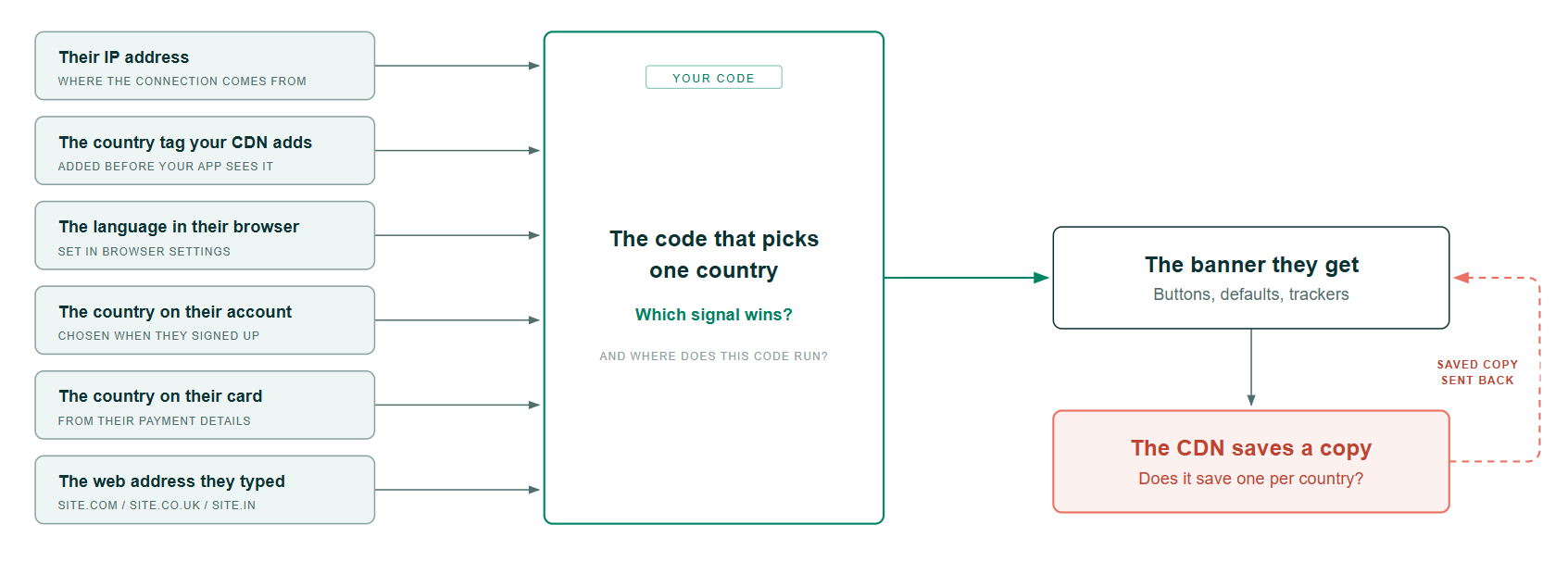
Fig 2: Various signals to decide which cookie banner to use and what promise to make
The first step towards testing cookie banners is to find out which signal, or set of signals, is used to make the decision. Each signal fails in its own way. The CDN saves its decision and hands the same one to the next visitor. The browser gives its decision to anyone who opens DevTools.
Four levels of testing a cookie banner
Cookie banner testing is easy to start with. Anyone with basic testing experience can do the quick, basic checks. However, the findings and real risks lie at much deeper levels. I visualize cookie testing in four levels, where each level increase also increases the likelihood of finding business risks and bugs.
Level 1: Basic checks
This level is all about visual and user interface-level testing. It includes checks such as:
- Rendering the banner in every supported language.
- Checking for any UI inconsistencies, field truncation, or visual bugs in all languages.
- Clickability of cookie banner buttons such as:
- Manage preferences
- Accept
- Reject, etc.
- Checking if "Accept All" and "Reject All" are of the same visual prominence. If not, then your app is creating a dark pattern.
- Checking for keyboard accessibility, e.g., being trapped on the banner, and screen reader order. If there is an issue here, you are already violating multiple laws.
Level 2: Quick checks
You can view the cookies in any app by going to the Application tab in your browser dev tools. The image below shows the cookie view on opening wonderproxy.com.
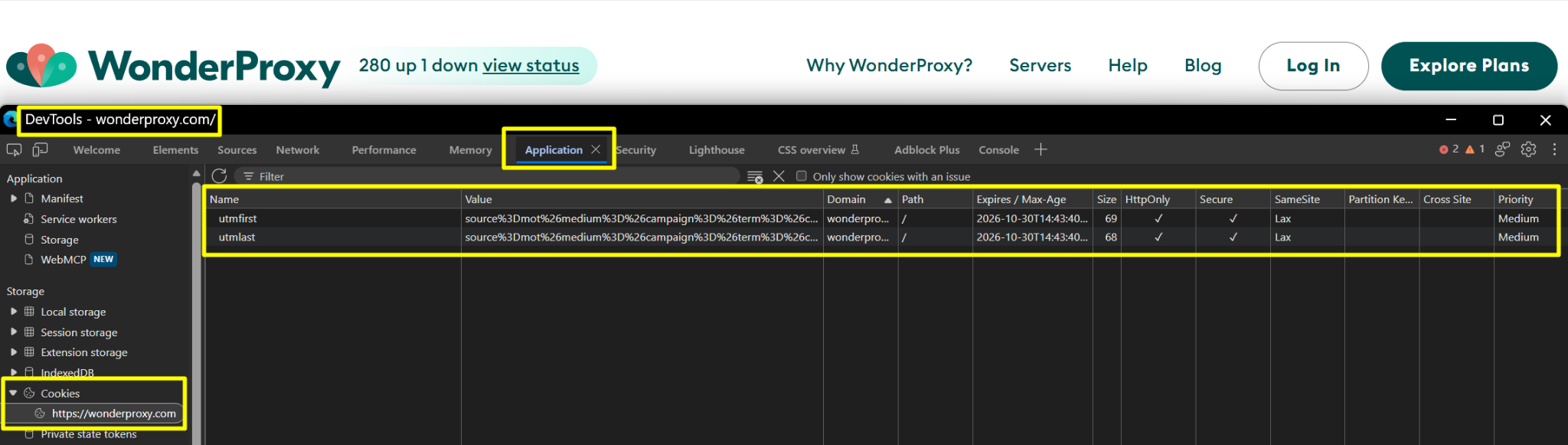
Fig 3: Application cookies as viewed from browser dev tools
Quick checks here include:
- Counting the cookies. Do they match the expected count?
- Reading the cookie names. Are the names meaningful?
- For each one, ask, ‘what breaks if it disappears?’
- Deleting the cookies one by one from the right-click menu available on each cookie entry.
- Checking for cookie persistence. Reload the page. Go from www.yoursite.com to app.yoursite.com. Go from http:// to https://. Open a second tab. Then delete only the consent cookie. Look for another stored value that keeps the old choice.
That last check is a common test idea. Many apps write the consent record in two places and delete it from only one.
The move from HTTP to HTTPS also finds bugs. A cookie with the Secure attribute goes only to HTTPS pages. localStorage keeps a separate copy for http:// and for https://. Thus the user can see the banner again, or the site can use an old choice.
Level 3: Deeper checks
Once you are done with the Applications tab, you can switch to the Network tab in the browser dev tools. Open the Network tab, filter for third-party domains, hard reload, and touch nothing.
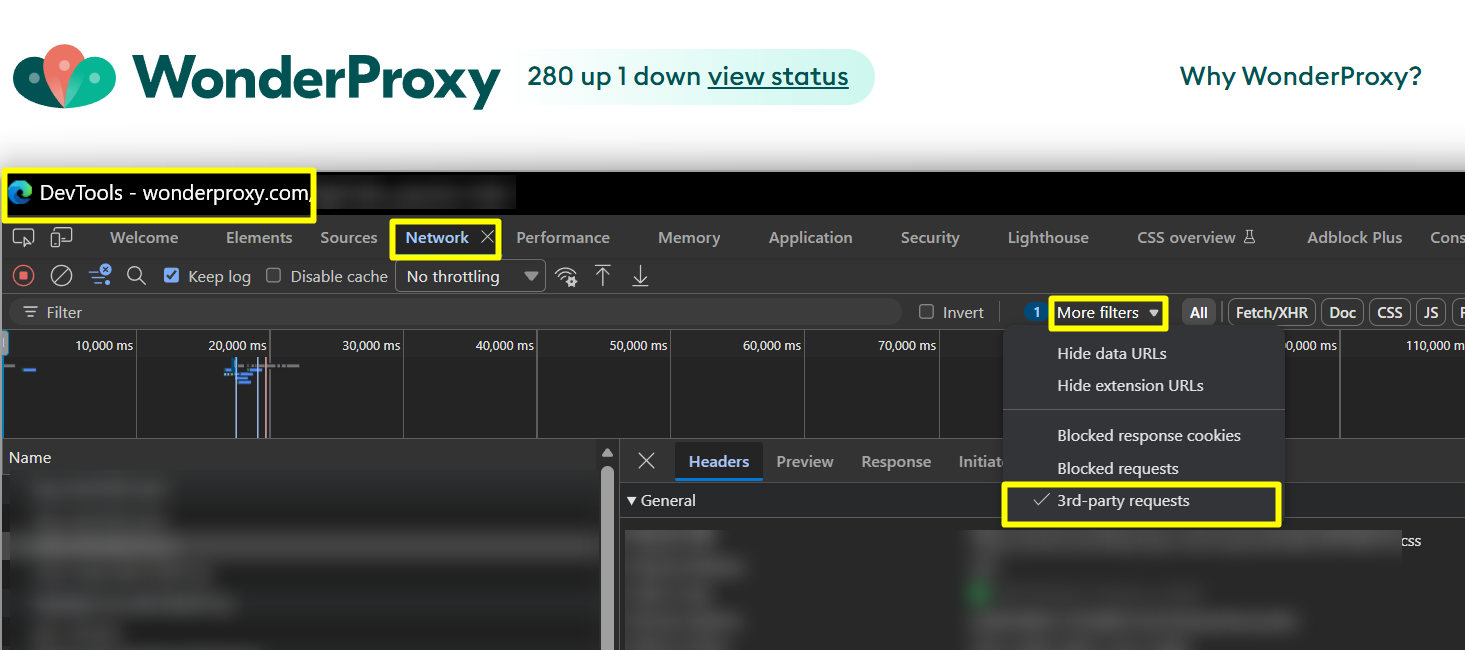
Fig 4: Filtering for third-party requests from the network logs
Once you are here, check that:
- Has any analytics or ad script already made its call before the cookie consent?
- Does the reject cookie hold this on the next page?
- Does the application implementation honour the rejection on the page where you clicked it?
- Does cookie withdrawal behave in the same way?
- What happens if you accept cookies, browse a couple of pages, then withdraw them, and browse a couple more pages?
- What happens on changing the cookie choice?
- Reject then accept.
- Accept then reject.
- What happens when you reject everything, and then use the product?
- What happens when a user rejects non-essential cookies?
These checks will verify if your application keeps the promises that it makes with its users. The pitfall possibilities at this level are huge, and a few deep checks here usually find a good number of bugs.
Level 4: Advanced checks
The last three levels tell you what your product promises. This level tells you if it maintains those promises or not. Here are some test ideas for these advanced checks:
- Record a full session with consent rejected and read every outbound request. Include the calls the page fires as it closes through navigator.sendBeacon, which stay invisible while you watch normal page traffic.
- Then send Sec-GPC: 1. That header means "do not sell or share my data", and some browsers and privacy extensions send it automatically. The user never clicks anything to trigger it, so nobody tests it.
- Since 1 January 2026, twelve US states require covered businesses to honour a universal opt-out signal. Adding the header takes one line in a proxy. Ignoring it is legal exposure.
- Leverage cookie testing tools for cookie reads and edits:
- Browser DevTools
- Cookie-Editor by Christophe Gagnier handles quick edits
- MITMProxy or Fiddler to see the traffic the browser won't show you.
What different countries ask for
There are different laws and regulations related to user data across the world. There is no standard requirement or compliance that will make you compliant worldwide. The laws keep on getting new updates, and this demands that businesses comply and stay functional. It’s best to consult and seek these requirements from your legal team.
Here is a short infographic explaining the differences in cookie-related regulations across the European Union (EU), the United Kingdom (UK), and the United States (US).
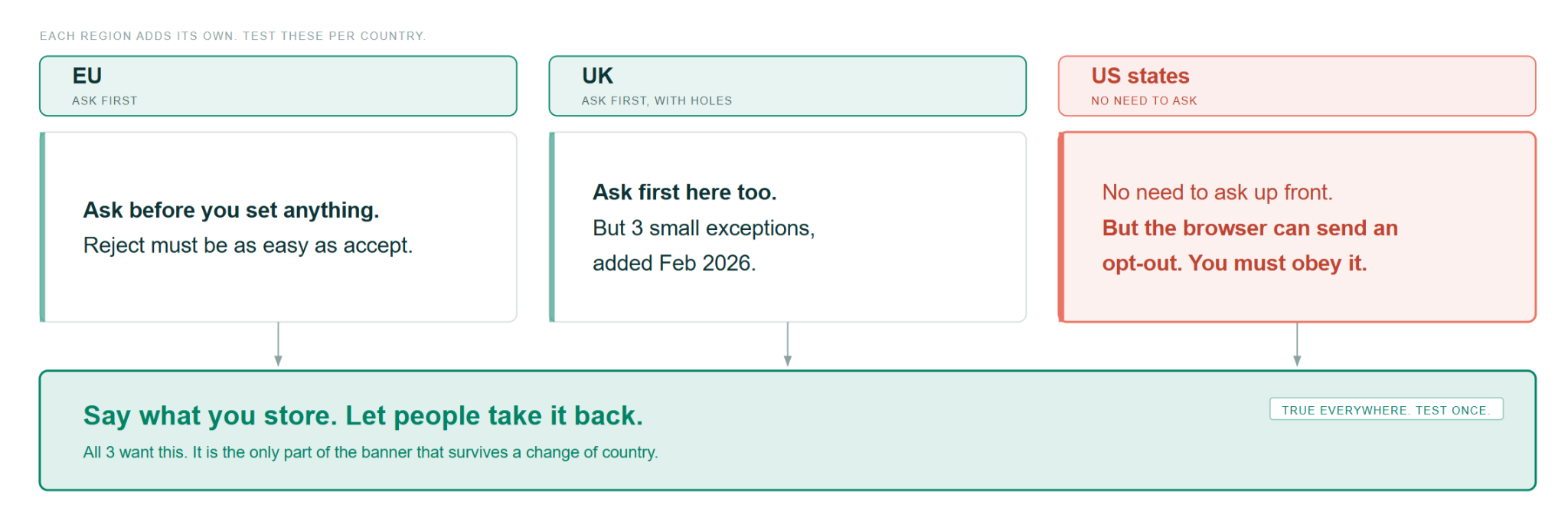
Fig 5: Few cookie rules are universal; most vary by country.
In the EU, you need consent before any non-essential cookie. Regulator guidance says rejecting should be as easy as accepting and available on the first layer.
In the UK, PECR rules now run under the Data (Use and Access) Act 2025. Since 5 February 2026, you can set three new categories of cookies without consent. Statistical, appearance, and emergency geolocation. For the statistical and appearance ones, you still owe the user clear information and a free, simple way to object. A UK banner and an EU banner will legitimately differ now.
In the US, no federal cookie consent law applies. State laws cover it instead, running an opt-out model, with twelve of them requiring you to honour a universal opt-out signal. If your banner behaves identically in California and Germany, one of those two is wrong.
Testing cookie banners from different countries
Testing cookie banners from different countries without actually travelling to those countries is possible in multiple ways. Each way comes with its own limitations except the last two.
They change one of two sides. The browser side is what the browser reports. Location, timezone, and language. The server side is what the server sees. The IP address and the CDN country tag. A real user abroad changes both sides at the same time.
Way 1 skips both sides and changes only the page logic. Ways 2 and 3 change the browser side. Way 4 changes the server side. Way 5 changes both.
- Add a country switch to the URL. This is the easiest to set up, but this requires a testing seam from the developer. For example, you can request a query parameter such as ?country=DE in non-production environments. This is really cheap to test. However, it relies on our page rendering logic and nothing else.
- Change it from the browser. The DevTools Sensors panel changes the location your browser reports when a site asks, and moves the timezone with it. Changing the language setting changes what Accept-Language says. All of it happens inside the browser, and your IP hasn't moved.
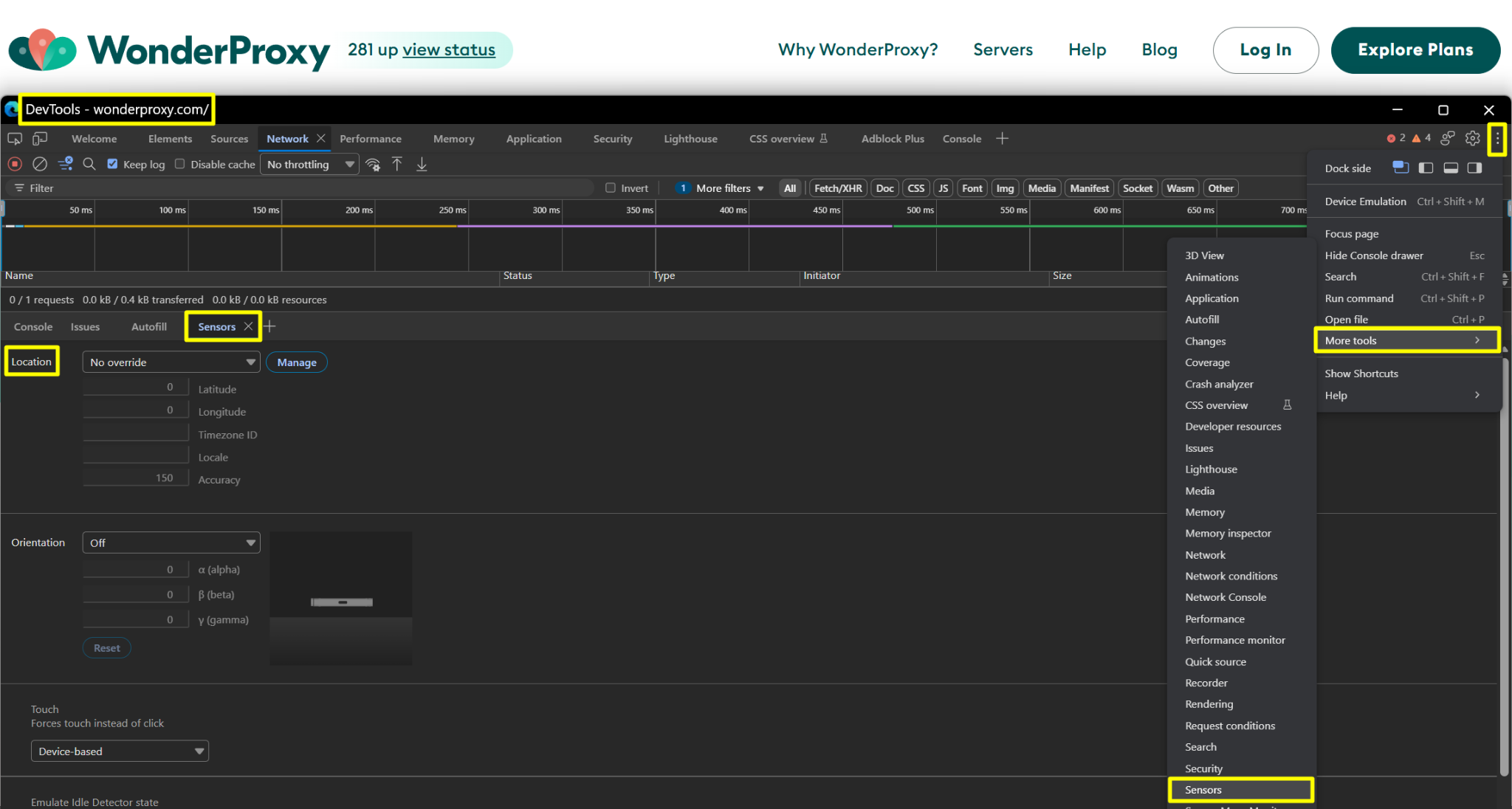
Fig 7: Overriding session location from browser dev tools
- Set it in your Playwright test. Modern test automation tools such as Playwright allow you to programmatically set geolocation, locale, timezoneId, and permissions per browser context, and pre-load consent cookies with context.addCookies(). This is good because it is easily repeatable and can be version-controlled. Note: This capability also exists with traditional GUI automation solutions such as Selenium, Cypress, etc., but with minor limitations.
- Test from a real server in your targeted country. This is like a real test from your real customer location. Here, the request originates from where your customer will be. The country tag is real because the IP belongs to a network in that country. Latency is the latency your user will get in reality. This is a real production test. Wonderproxy also offers this solution for geo-location testing.
Know more about geo-location testing with Wonderproxy
- Trigger Playwright tests from a real server solution. This is a combination of 3 and 4. Playwright moves the browser signals. A server in the country moves the request signals. Run them together, and you cover all the permutations that can match a real user.
You can connect WonderProxy with your Playwright script using a simple config block:
const server = 'frankfurt.wonderproxy.com:11000';
test.use({
proxy: {
server: `http://${server}`,
    username: process.env.WONDERPROXY_USER,
    password: process.env.WONDERPROXY_TOKEN,
 	 },
locale: 'de-DE',
timezoneId: 'Europe/Berlin',
});
With a single spec file and a single set of test assertions, you can change the server and the language together, and you can have a single test run across every country you do business in. WonderProxy has such servers across 100+ countries.
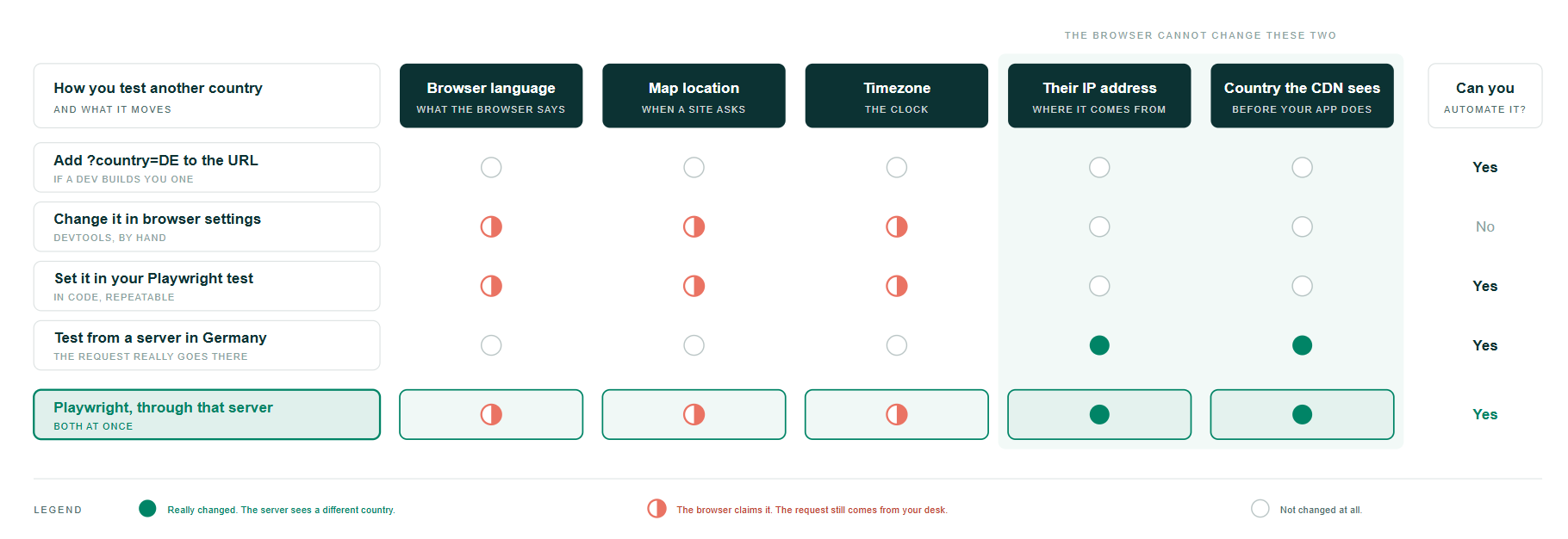
Fig 8: What each way of cookie testing really changes, and what you achieve with each
Start here
Pick one country you sell in and two you've never tested from. Check all three together live for free using testlocal.ly. TestLocally allows you to see your live website from any location. Then work through this:
- See how your app displays the cookie banner in all three countries.
- Check with your team what signals decide the cookie banner in your app.
- Run all four levels of test on your own app.
- Send Sec-GPC: 1 once, from one test, and read what comes back.
- Repeat all of it from a machine inside the country whose rules you claim to follow.
At the start, we saw three different banners on the Netflix website in three countries. Each banner was a promise that your business makes to a user. The screen makes the promise. The code, the CDN, and every third-party script keep it. Laws change, scripts change, and CDN rules change. If you are in a similar business, you will have to test all the parts again after each change.
Start a WonderProxy trial and check if the cookie variants you've been assuming work fine are actually working fine.